Logs, stats, terminal and files
Select a container to open its details pane. Besides Overview, it has these tabs. Logs and stats stream only for the container whose details are open, so Ferrodock stays light.
Logs
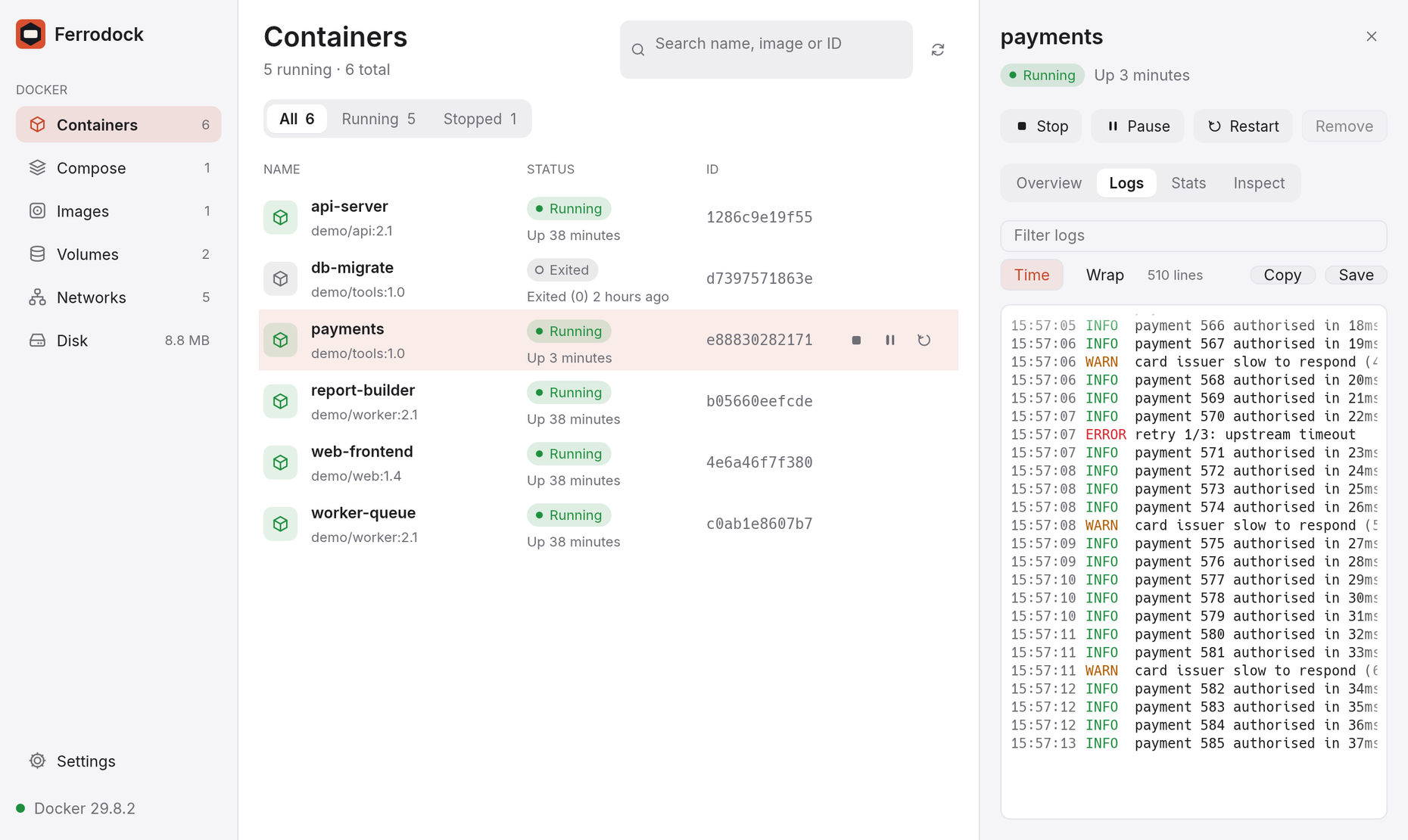
The Logs tab shows the last 500 lines, then follows new output live.
- Colours from the container (ANSI escape codes) are shown as colours. Lines without colours that mention an error or a warning are tinted red or amber.
- Type in Filter logs to show only matching lines; matches are highlighted.
- Time shows when each line was written; Wrap wraps long lines.
- Scroll up to read back; Latest jumps to the newest line and keeps following.
- Copy copies the lines shown, and Save writes the whole log to your Downloads folder.
Stats
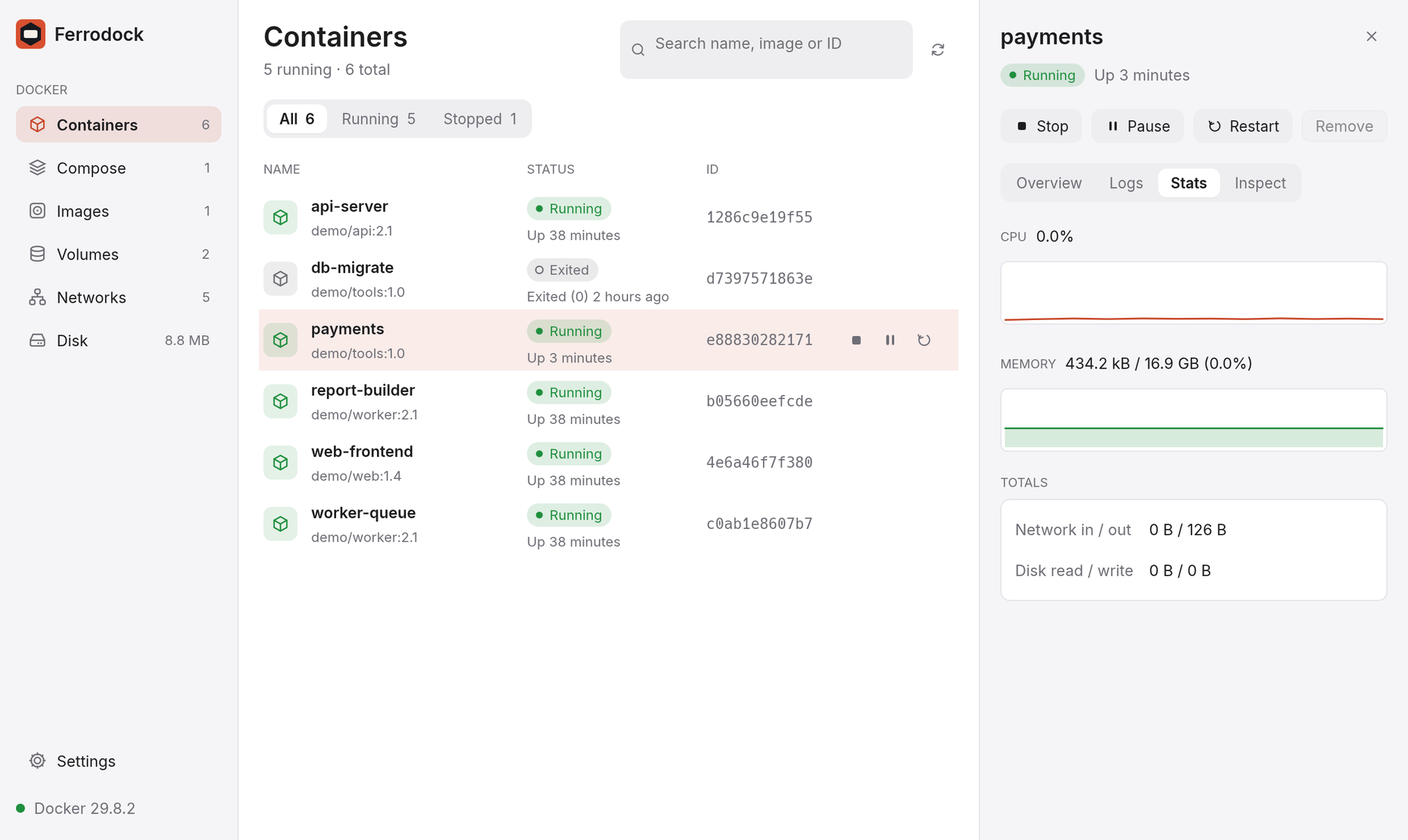
The Stats tab charts CPU and memory over the last minute, with network
and disk totals. CPU is measured like docker stats: 100% means one full
CPU core. Hover over a chart to read the value at any moment.
Top
The Top tab lists the processes running inside the container (process ID, user, CPU time and command), refreshed every two seconds while it's open.
Terminal
The Terminal tab opens a shell inside a running container, like
docker exec -it. It picks bash when the container has it and sh
otherwise; type another shell (say zsh) in Shell and click New
session to use that instead.
It's a real terminal: full-screen programs such as top, vi and less
work, along with arrow keys, tab completion and colours. Its size follows
the pane. Ctrl+C interrupts; on macOS, ⌘C copies and ⌘V pastes.
Containers without a shell
Images with no shell at all, like distroless ones, offer Open a debug
shell instead. It starts a small helper container (busybox) next to
yours that shares its processes and network, so ps, netstat and
wget localhost:8080 see your container, and its files are in /target.
The helper is hidden from the list and removed when the session ends.
To use another image for the helper (say, a mirror when Docker Hub can't be
reached), set the FERRODOCK_DEBUG_IMAGE environment variable before
starting Ferrodock.
Files
The Files tab browses the container's filesystem, no docker cp
needed. Stopped containers can be browsed too.
- Click a folder to open it, .. to go up, or a part of the path at the top to jump back.
- Click a file to preview it. Text files up to 512 KB show inline.
- Download (next to a preview, or the arrow at the top for the whole folder) copies it to your Downloads folder. A name that's taken gets a number, so nothing is overwritten.
- Drop files or folders from your desktop onto the window to copy them into the open folder.
Inspect
The Inspect tab shows what docker inspect knows, in readable form.
Images, volumes and networks have the same in an Inspect section at the
bottom of their details.
- Runtime: the restart policy and, for containers with a healthcheck, the health status, how many checks failed in a row and the last output.
- Environment: every variable. Values that look like secrets
(passwords, tokens, keys) are hidden until you tick Show secrets.
Click a row to copy it as
KEY=value. - Labels, including the ones Docker Compose adds.
- Raw JSON: the full output, with a copy button.