Finding your way around
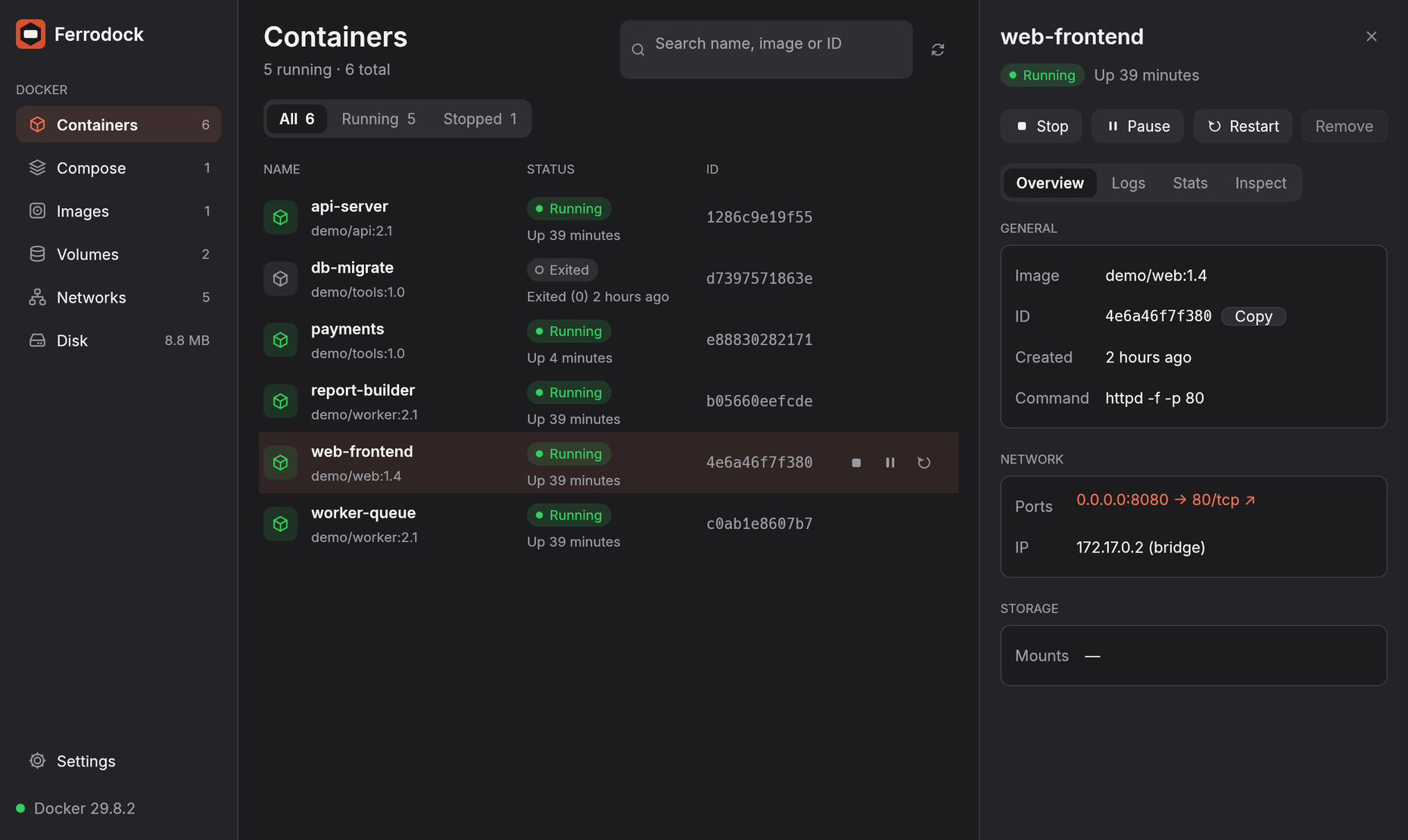
The window
The sidebar lists the pages (Containers, Compose, Images, Volumes, Networks and Disk) with a count for each, and Quick start under START. At the bottom are Settings and the engine's status, such as ● Docker 29.8; click the status to switch engines.
Each page has a search box (press / to jump to it). Click any row to open its details pane on the right; click the row again, the ✕, or press Esc to close it.
Always up to date
You don't need to refresh. Ferrodock follows the Docker engine's event stream, so changes show up the moment they happen, whether you make them in Ferrodock, in a terminal or with Docker Compose. Lists are also refreshed every few seconds, and F5 refreshes right away.
While an action runs, the status says what's happening ("Stopping…", "Restarting…"). Anything that deletes data asks for confirmation first.
Crash notifications
If a container crashes (exits with an error you didn't ask for) or is killed for running out of memory, Ferrodock tells you, with a system notification when its window is in the background. You can turn these off in Settings.
Command palette
Press ⌘K (macOS) or Ctrl+K (Windows, Linux) to open the command palette. Type a few letters of anything (a container, image, volume, network, Compose project, or an action such as "restart api" or "remove unused images") and press Enter. Entries you used recently come first.
Keyboard shortcuts
On Windows and Linux, use Ctrl where the table says ⌘. Press ? in the app to see them all.
| Keys | Does |
|---|---|
| ⌘K | Command palette |
| ⌘, | Settings |
| ⌘1 … ⌘6 | Switch page |
| / | Search this page |
| ↑ ↓ or J K | Select the previous or next item |
| ⌘-click, Shift-click, ⌘A | Select several, a range, or all |
| Esc | Close the details pane, clear the selection |
| S | Start or stop the selected container |
| R | Restart it |
| P | Pause or resume it |
| L | Show its logs |
| ⌫ or Delete | Remove it (asks first) |
| F5 | Refresh |
| ? | Show all shortcuts |