Containers
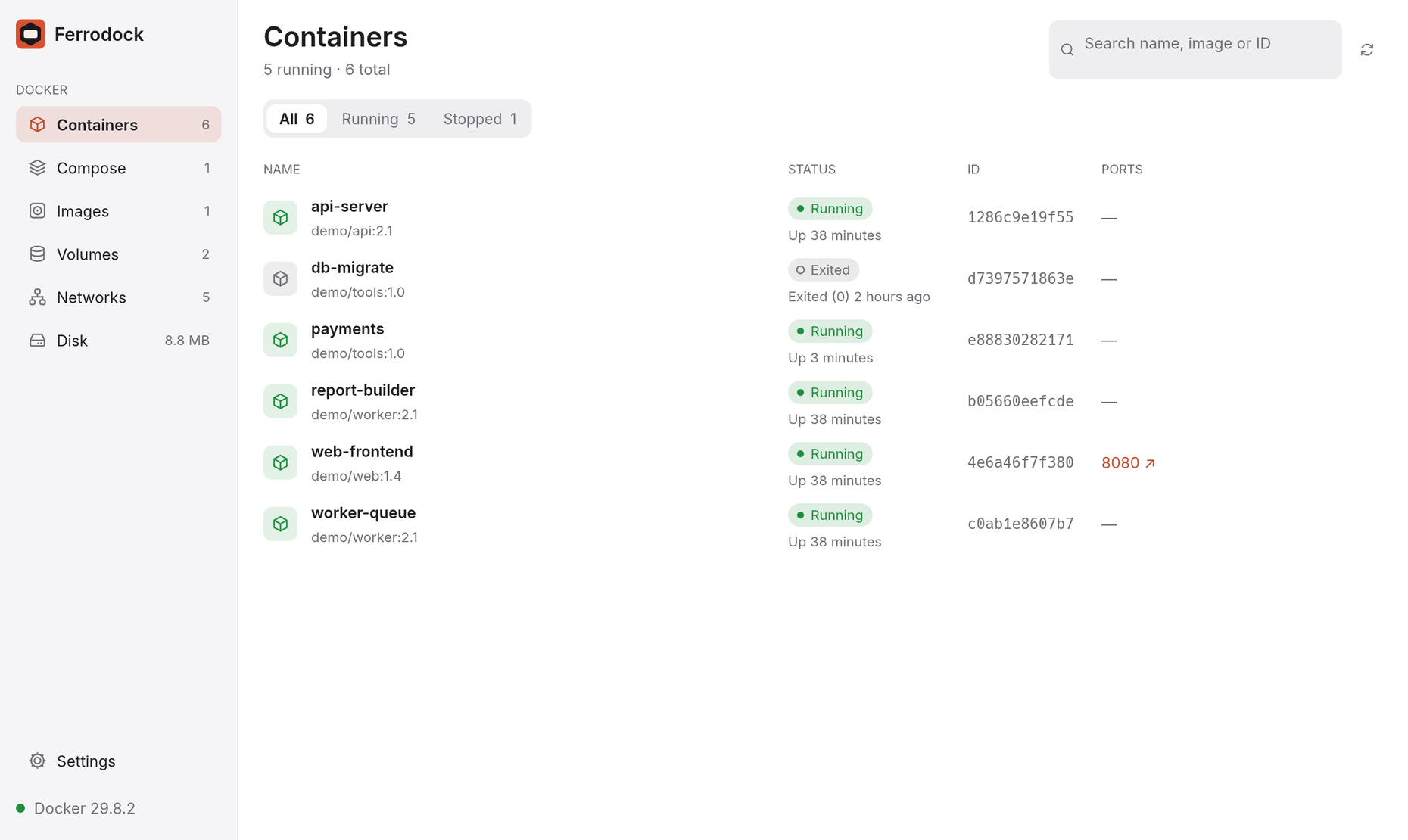
The Containers page shows every container with its state, image, ID, current CPU (with a short trend line, amber above 80%), memory and published ports. Use All / Running / Stopped to filter, and the search box to find a container by name, image or ID.
Everyday actions
Hover a row for its buttons, or use the ones at the top of the details pane:
- ▶ / ■ starts or stops a container, ⏸ / ⏵ pauses and resumes it, and ⟳ restarts it.
- Published ports are links: click 8080 ↗ to open the app in your browser, or right-click to copy its address.
- Remove… (in the details pane's ⋯ menu) is available once the container is stopped, and always asks first.
Changing a container
In a container's details, the ⋯ menu next to the actions has:
- Rename… gives it a new name.
- Edit… opens the Run dialog filled in with its current setup. Change ports, environment, volumes, network, limits or the command, then Recreate replaces the container with the new one. Named volumes and bind mounts are kept; changes made inside the container itself are not. If the new container can't start, the old one is put back as it was.
- Duplicate… opens the same dialog for a copy; the host ports move up by one so they don't clash.
In the Overview tab:
- Restart changes the restart policy on the spot, without recreating the container.
- Limits shows its CPU and memory limits; Change… sets them on the spot. Removing a limit needs Edit….
- IDs, the IP address and the command can be copied: click the value, or Copy next to it.
Many containers at once
- Tick the box in front of a row, or the box in the header to select every container shown. You can also ⌘-click (Ctrl-click) rows, Shift-click for a range, or press ⌘A (Ctrl+A) for all of them.
- A bar above the list then offers Start, Stop, Restart and Remove… for the selection. If some of them run, Remove asks whether to stop those first. Esc clears the selection.
Grouping by Compose project
Group by project (top right of the list) puts containers under their Compose project, with a header such as shop · 2/3 running. Click the header to fold the project away; it also has Start all, Stop all and Restart all. Containers in no project are listed last. The choice is remembered.
Looking inside
A container's details pane has tabs for everything else: Logs, Stats, Top, Terminal, Files and Inspect.