Using Ferrodock
The sidebar lists every section with a count, and the Docker Engine status at the bottom. Each page has a search box, and lists refresh every few seconds. Press F5 to refresh right away.
Click any row to open its details pane on the right. Click it again, or the ✕, to close it.
Containers
The containers page shows every container with its state, image, ID, current CPU (with a short trend line, amber above 80%), memory and published ports. Use All / Running / Stopped to filter.
- ▶ / ■ starts or stops a container, ⏸ / ⏵ pauses and resumes it, and ⟳ restarts it.
- Published ports are links: click 8080 ↗ to open the app in your browser, or right-click to copy its address.
- Remove… (in the details pane's ⋯ menu) is available once the container is stopped, and always asks for confirmation.
Changes show up the moment they happen, whether you make them in Ferrodock, in a terminal or with Docker Compose. Ferrodock follows the Engine's event stream. While an action runs, the status says what's happening ("Stopping…", "Restarting…").
If a container crashes (exits with an error you didn't ask for) or is killed for running out of memory, a notification tells you.
In a container's details, the ⋯ menu next to the actions has:
- Rename… gives it a new name.
- Edit… opens the Run dialog filled in with its current setup. Change ports, environment, volumes, network, limits or the command, then Recreate replaces the container with the new one. Named volumes and bind mounts are kept; changes made inside the container itself are not. If the new container can't start, the old one is put back as it was.
- Duplicate… opens the same dialog for a copy: the host ports move up by one so they don't clash.
- Restart (in Overview) changes its restart policy on the spot, without recreating it.
- IDs, the IP address and the command can be copied: click the value, or Copy next to it.
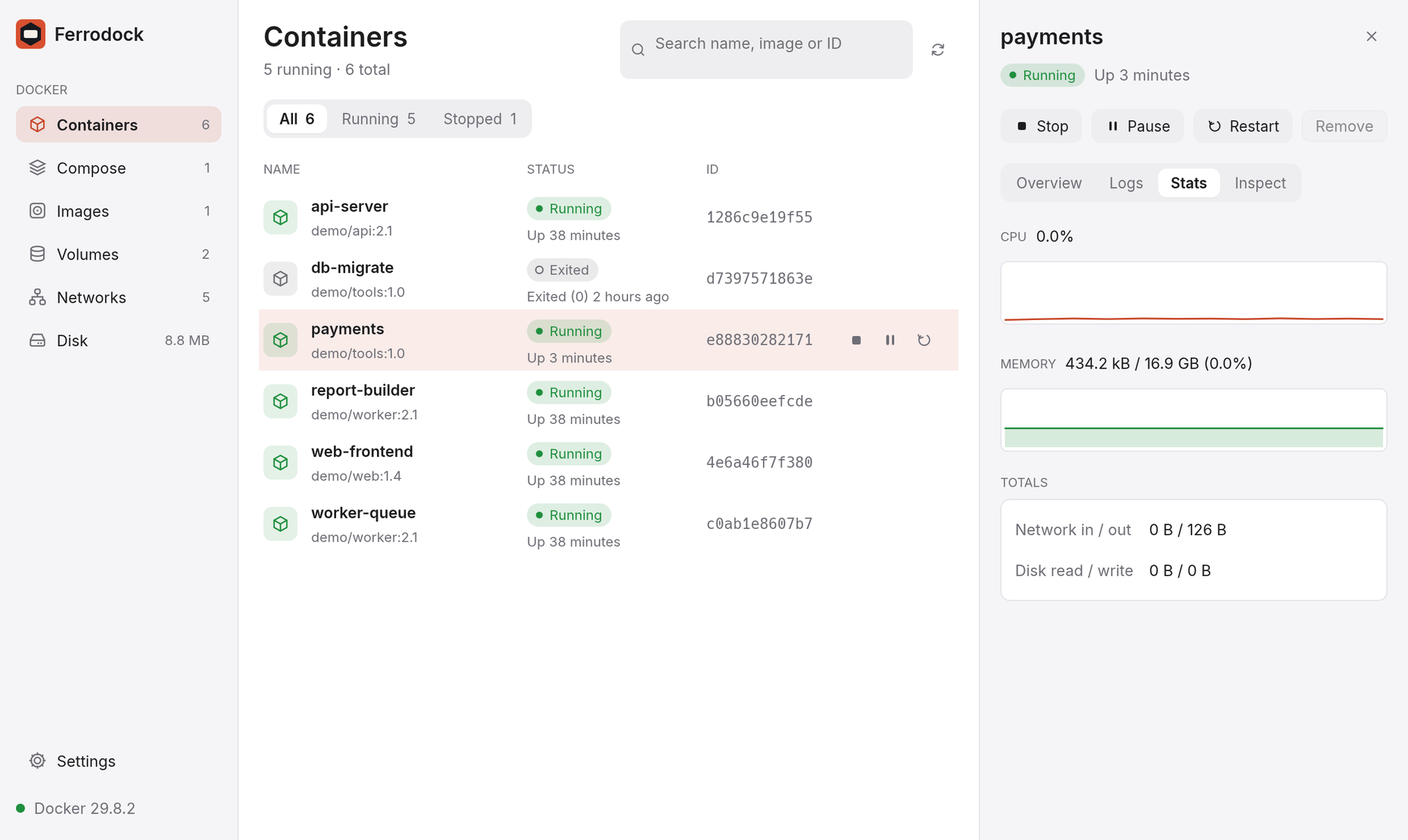
- Hover over the CPU or memory chart (in Stats) to read the value at any moment of the last minute.
- Limits (in Overview) shows its CPU and memory limits; Change… sets them on the spot. Removing a limit needs Edit….
To act on several containers at once, ⌘-click (Ctrl-click) rows to select them, Shift-click to select a range, or press ⌘A (Ctrl+A) for all of them. A bar above the list then offers Start, Stop, Restart and Remove… for the selection; Esc clears it.
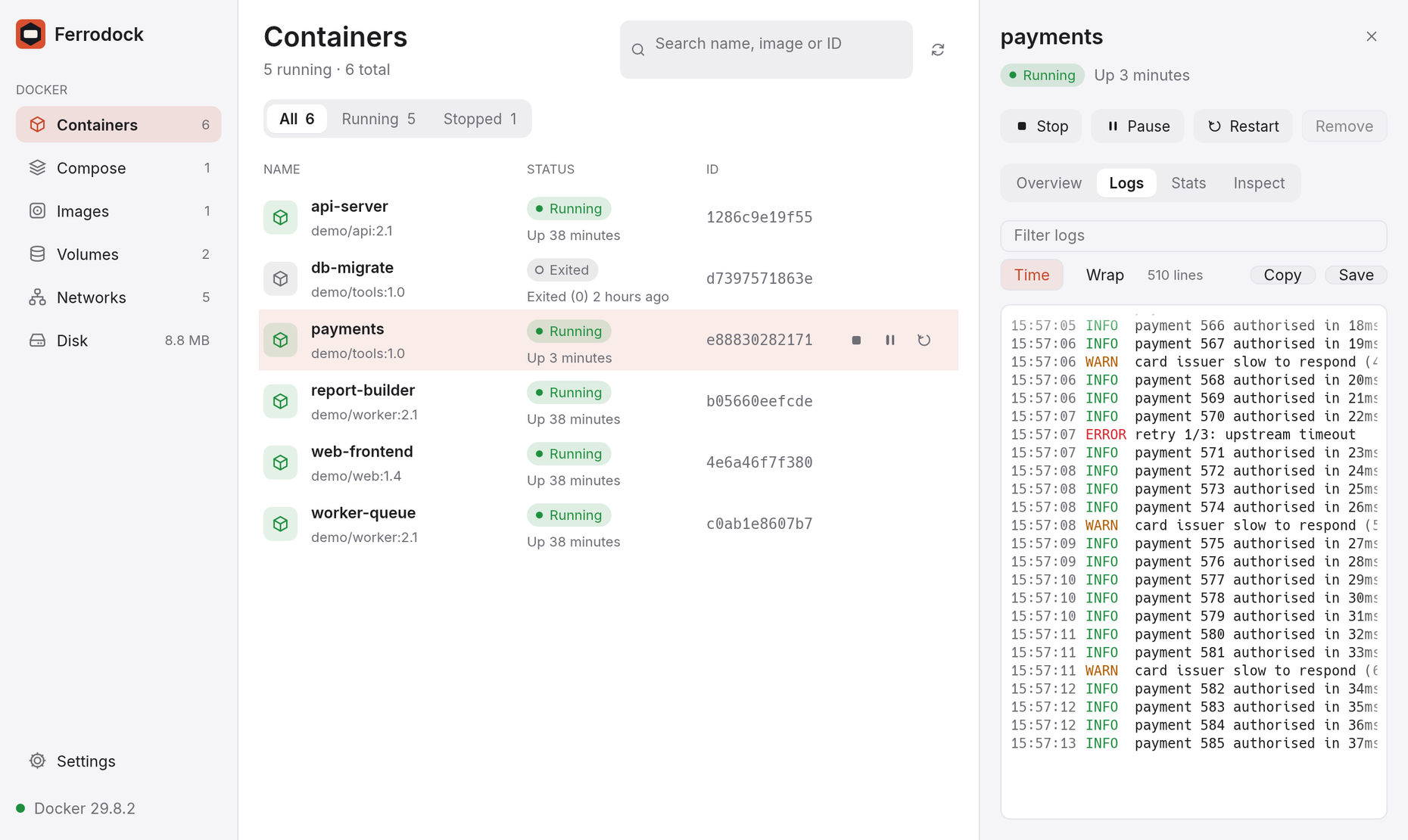
Logs
The Logs tab shows the last 500 lines, then follows new output live.
- Colours from the container (ANSI escape codes) are shown as colours. Lines without colours that mention an error or a warning are tinted red or amber.
- Type in Filter logs to show only matching lines; matches are highlighted.
- Time shows when each line was written; Wrap wraps long lines.
- Scroll up to read back; Latest jumps to the newest line and keeps following.
- Copy copies the shown lines, and Save writes the whole log to your Downloads folder.
Stats
The Stats tab shows CPU and memory with a one-minute chart, plus network
and disk totals. CPU is measured like docker stats: 100% means one full
CPU core.
Logs and stats stream only for the container whose details are open, so Ferrodock stays light.
Compose
Containers started by Docker Compose are grouped by project. A project shows Running, Running 2/3 (some services stopped) or Stopped.
- Start all / Stop all / Restart all act on the whole project.
- Remove deletes the project's containers once it's stopped. Volumes,
networks and images are kept, and
docker compose uprecreates everything. - Rebuild next to a service (in Overview) rebuilds and recreates just that service; Rebuild all does every service, and Pull & recreate pulls newer images and recreates the containers.
- Logs shows every service's logs together, live, each service in its own colour. Click a service to see only its lines.
To start a project that isn't running yet, paste the path of its
compose.yaml in the box at the top of the page and click Up, or drop
the file on the window. Projects you started this way are listed under
Recent for one-click restarts. The output of docker compose shows
while it works.
These use the docker compose command, so the Docker CLI with Compose
needs to be installed; Ferrodock points it at the engine you picked.
Images, volumes and networks
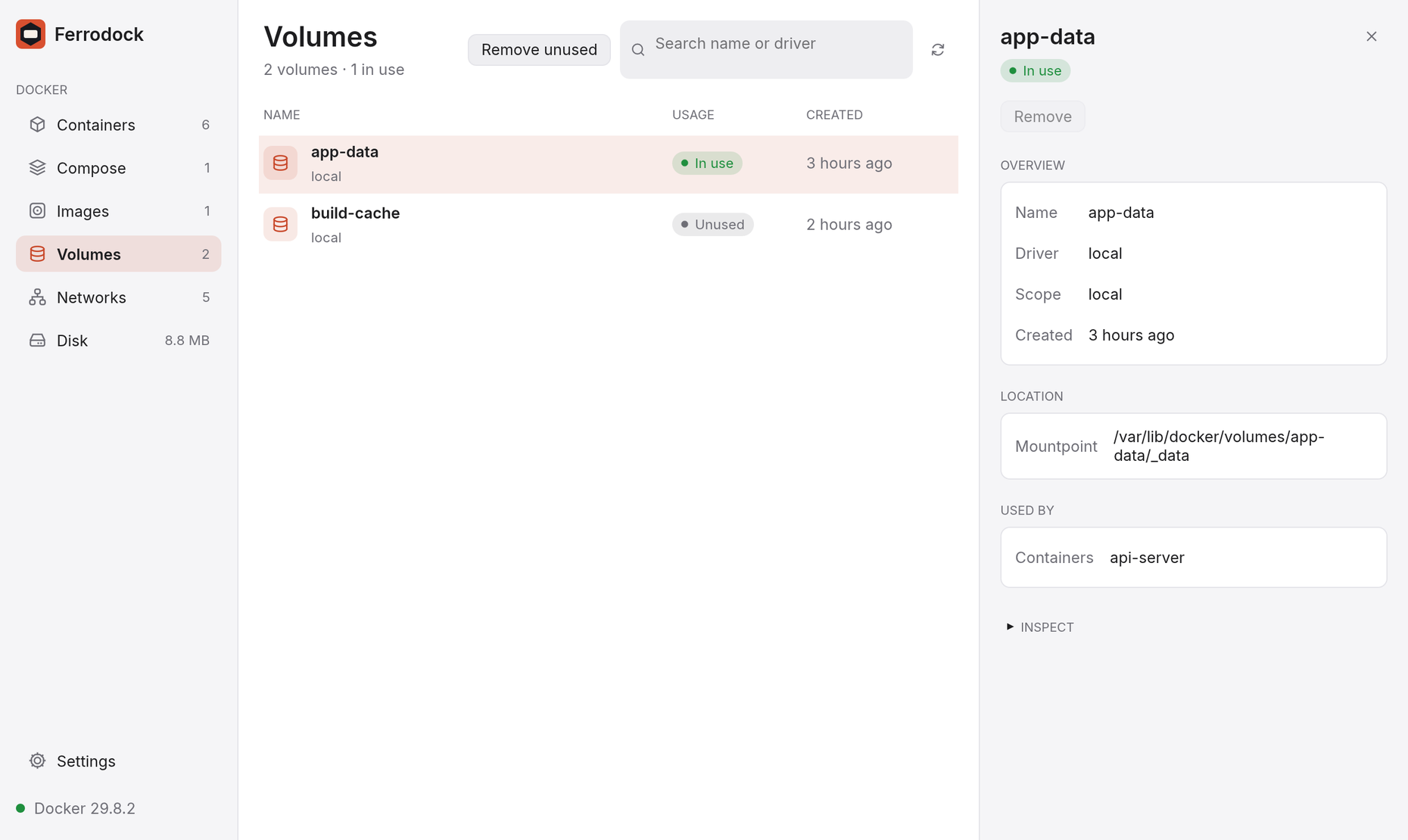
Each page shows what's in use and by which containers.
- Remove in the details pane deletes one item. It's disabled, with the reason on hover, while something still uses it.
- Remove unused in the page header removes everything nothing uses.
Docker's built-in networks (
bridge,host,none) are never touched.
Themes
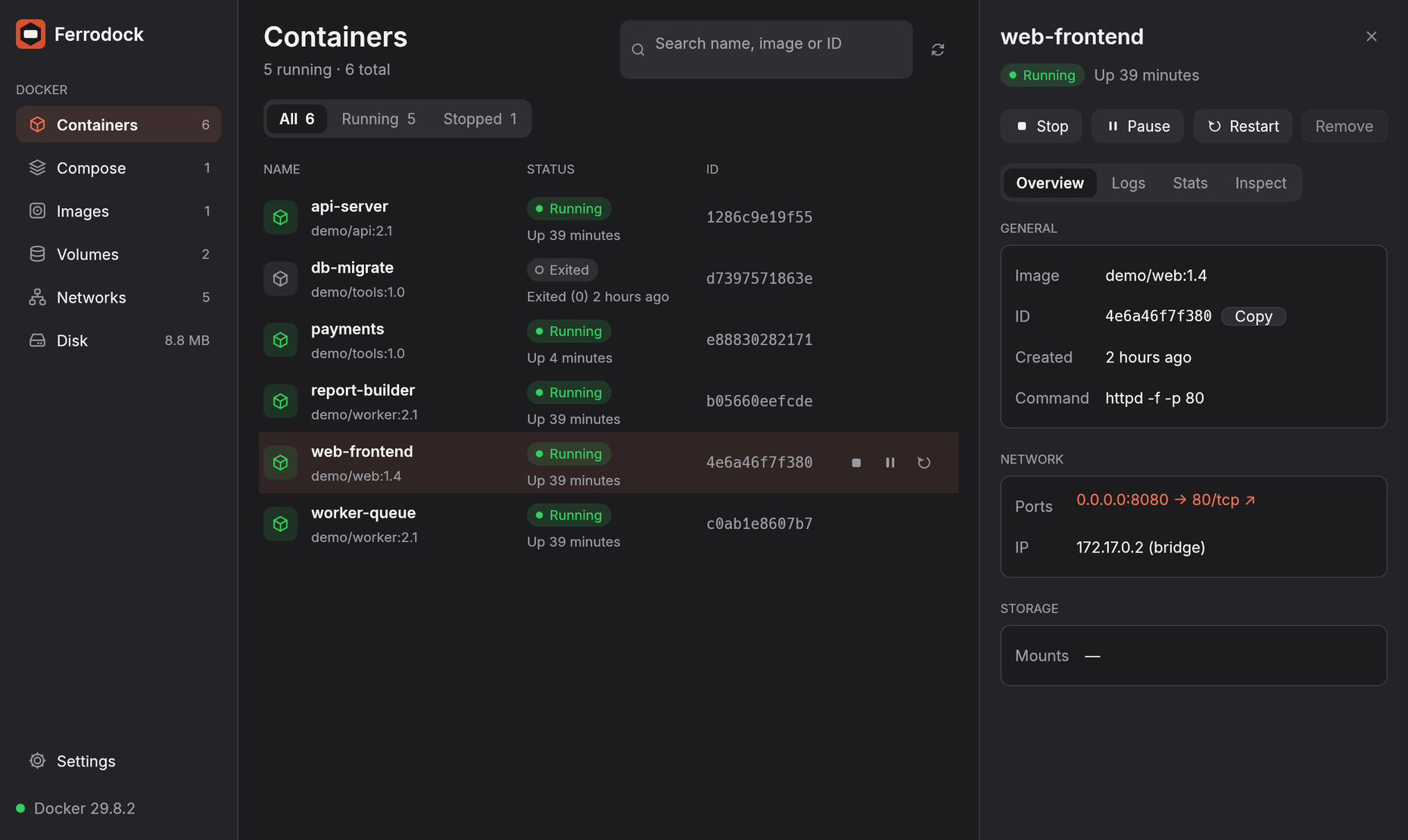
Ferrodock starts in light mode. Switch to dark, or let it follow your system, in Settings.
Processes
The Top tab lists what's running inside the container (process ID, user, CPU time and command), refreshed every two seconds while it's open.
Terminal
The Terminal tab opens a shell inside a running container, like
docker exec -it. It picks bash when the container has it and sh
otherwise; type another shell (say zsh) in Shell and click New
session to use that instead.
It's a real terminal: full-screen programs such as top, vi and less
work, along with arrow keys, tab completion and colours. The size follows
the pane. Ctrl+C interrupts (on macOS, ⌘C copies the screen and
⌘V pastes).
Images with no shell at all, like distroless ones, offer Open a debug
shell instead. It starts a small helper container (busybox) next to
yours that shares its processes and network, so ps, netstat and
wget localhost:8080 see your container, and its files are in /target.
The helper is hidden from the list and removed when the session ends. To
use another image for the helper (say, a mirror when Docker Hub can't be
reached), set the FERRODOCK_DEBUG_IMAGE environment variable.
Files
The Files tab browses the container's filesystem, no docker cp
needed.
- Click a folder to open it, .. to go up, or a part of the path at the top to jump back.
- Click a file to preview it. Text files up to 512 KB show inline.
- Download (next to a preview, or the arrow at the top for the whole folder) copies it to your Downloads folder. A name that's taken gets a number, so nothing is overwritten.
- Drop files or folders from your desktop onto the window to copy them into the open folder.
Stopped containers can be browsed too; their files come straight from the container's filesystem as it was left.
Pull and run images
On the Images page, type an image name such as nginx:alpine in the
Pull box and press Enter. A progress bar shows the download.
To start a container from an image, hover its row and click ▶, or select it and click Run…. The dialog asks for:
- Name (optional; Docker picks one otherwise).
- Ports, filled in from the ports the image exposes. Change the host side if it's taken.
- Environment variables, Volumes (a volume name or a host path), Network, Restart policy and an optional Command.
An image's details pane also has a History section listing the layers it was built from, with the biggest ones highlighted, so you can see where its size comes from.
The equivalent docker run command is shown as you type, with a Copy
button, so you can reuse it in scripts.
Search, tag, push, save and load
- Search Docker Hub next to the Pull box lists matching images, official ones first, with their stars; Pull on a result pulls it.
- In an image's details, the ⋯ menu has Tag… (give it another
name, such as
ghcr.io/me/app:1.0), Push (with progress, to the registry its name starts with) and Save as .tar (to your Downloads folder). - To load a saved image, drop its
.taron the window while the Images page is open.
Pulling and pushing use the logins of the Docker CLI: whatever
docker login stored in ~/.docker/config.json, including credential
helpers such as the macOS keychain. Private registries work the same way.
Inspect
Every details pane can show what docker inspect knows. Containers have an
Inspect tab; images, volumes and networks have an Inspect section at
the bottom.
- Runtime: the restart policy, and for containers with a healthcheck, the health status, how many checks failed in a row and the last output.
- Environment: every variable. Values that look like secrets
(passwords, tokens, keys) are hidden until you tick Show secrets.
Click a row to copy it as
KEY=value. - Labels, including the ones Docker Compose adds.
- Raw JSON: the full output, with a copy button.
Volumes and networks
New volume and New network create them (a network can get its own subnet, or be internal with no internet access). In a network's details, Disconnect takes a container off it, and the picker below Connects another one.
Browse files in a volume's details shows what's in it, even when no container uses it: open folders, preview text files and download anything, just like a container's Files tab. The view is read-only. Behind the scenes Ferrodock creates a helper container that mounts the volume read-only and never runs; it's hidden from the container list and removed when you click Done browsing, when the volume is removed, or the next time Ferrodock starts.
Disk
The Disk page shows how much space images, containers, volumes and the build cache take, and how much of it can be freed. The total is also shown in the sidebar.
Under Clean up, tick what to remove: stopped containers, untagged or all unused images, unused volumes, unused networks, or the build cache. Ferrodock lists exactly what will be deleted and asks before it does anything. When it's done, a notification says how much space was freed.
Disk usage is loaded when you open the page or press refresh, never in the background. It needs Docker Engine 29 or newer.
Docker engines
Ferrodock connects to the same engine as the docker command: your
current Docker context, or DOCKER_HOST. To use another one, click the
engine's status at the bottom of the sidebar (● Docker 29.8 …) and pick
it from the list. The switch happens right away, without restarting, and
Ferrodock remembers it.
The list has:
- default, and every Docker context (
docker context ls), whether it uses a local socket, a remotetcp://host with TLS, orssh://(macOS and Linux). - Engines found on this machine: Docker Desktop, Colima (every profile), Rancher Desktop and Podman.
Menu bar and notification area
On macOS, Ferrodock puts an icon in the menu bar showing how many containers are running; on Windows it's in the notification area. Its menu has:
- Open Ferrodock, and whether Docker is running.
- Compose: each project with Start all / Stop all.
- Your containers (running ones first, ● running, ○ stopped), each with Start, Stop, Restart and Show in Ferrodock.
- Quit Ferrodock.
Closing the window keeps Ferrodock running there, so the icon stays; Quit Ferrodock in its menu really quits. To quit on close instead, turn off Keep running there when the window is closed in Settings.
Linux doesn't have the icon yet.
Settings
Click ⚙ Settings at the bottom of the sidebar, or press ⌘, (Ctrl+, on Windows and Linux).
- Theme: Light (the default), Dark, or System to follow your operating system.
- Density: Comfortable shows two lines per row; Compact fits about twice as many rows on screen.
- Interface size: 90% to 125%.
- Startup: open Ferrodock when you log in. On macOS and Windows it then starts in the menu bar / notification area, without opening the window.
- Menu bar (macOS) / Notification area (Windows): keep running there when the window is closed.
Settings, the window size and its position are remembered between runs.
Keyboard shortcuts
Press ⌘K (macOS) or Ctrl+K (Windows, Linux) to open the command palette. Type a few letters of anything, such as a container, image, volume, network, Compose project or action ("restart api", "remove unused images"), and press Enter. Entries you used recently come first.
| Keys | Does |
|---|---|
| ⌘/Ctrl+K | Command palette |
| ⌘/Ctrl+, | Settings |
| ⌘/Ctrl+1 … 6 | Switch page |
| / | Search this page |
| ↑ ↓ or J K | Select the previous or next item |
| Esc | Close the details pane |
| S | Start or stop the selected container |
| R | Restart it |
| P | Pause or resume it |
| L | Show its logs |
| ⌫ or Delete | Remove it (asks first) |
| F5 | Refresh |
| ? | Show all shortcuts |